
Download Xming – Free Windows X Server, Secure SSH Forwarding & 3D Graphics
Xming is a free, public‑domain display server that brings the power of the X Window System to Windows PCs. First released in 2007, the tool has become a go‑to solution for developers, system administrators, and anyone who needs to run graphical Linux/Unix applications on a Windows workstation. Unlike heavyweight alternatives such as Cygwin/X, Xming runs natively on Windows without requiring an additional emulation layer, which keeps the installation footprint small and performance snappy.
The software includes a handy Xlaunch wizard, support for multiple languages, OpenGL, GLX extensions, and a built‑in MinGW compiler suite that enables cross‑compilation from Linux to Windows. Because Xming is public domain, it can be downloaded, used, and redistributed without any licensing fees. The program also integrates smoothly with popular SSH clients like PuTTY, MobaXterm, and XShell, allowing secure X11 forwarding over encrypted channels.
While the core engine receives occasional updates, users often need to tweak configuration files manually to keep the server compatible with the latest Windows releases. Overall, Xming delivers a lightweight, reliable, and secure X server experience that is especially appealing to power users who appreciate its no‑cost, open‑source nature.
Key Features That Make Xming Stand Out
- Native Windows X11 server built on the X.Org code base – no Cygwin dependency.
- Compact installer (≈2 MB) and a portable version that runs from a USB stick.
- Support for OpenGL, GLX, and Mesa 3D extensions for hardware‑accelerated graphics.
- Integrated Xlaunch wizard for quick session setup with four display modes.
- Full compatibility with SSH tools (PuTTY, PLINK, MobaXterm) for secure X11 forwarding.
- Multilingual interface and font rendering enhancements for clearer on‑screen text.
- Bundled MinGW compiler suite enabling cross‑compilation of Linux applications.
- Multi‑threaded Pthreads‑Win32 library for improved concurrency handling.
- Public‑domain licensing – free for personal, commercial, or educational use.
- Regular, albeit modest, updates that keep the server functional on newer Windows builds.
Installation, Configuration, and Everyday Usage
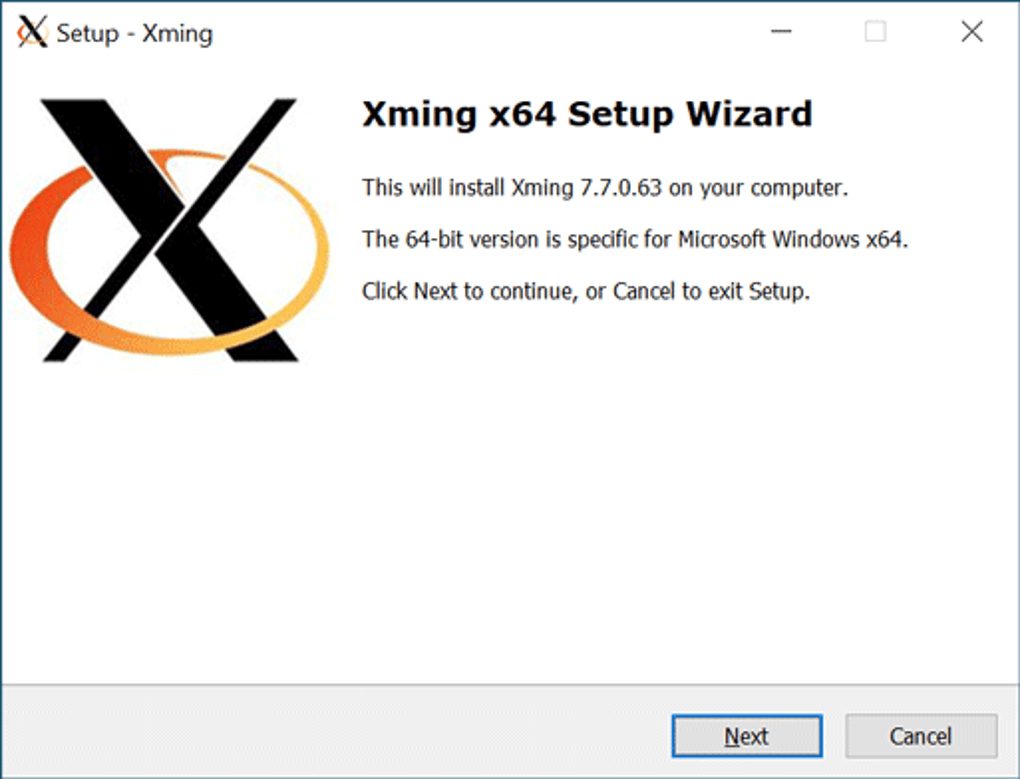
Getting Xming up and running on a Windows machine is straightforward, especially for users familiar with standard Windows installers. Begin by downloading the latest installer or portable zip package from the official Xming website. The installer guides you through a typical “Next‑Next‑Finish” flow, after which a shortcut to Xming appears on the desktop. For the portable version, simply extract the zip file to a preferred folder or USB drive; no registry entries are created, making it ideal for on‑the‑go environments.
Once launched, Xming automatically starts the X server in the background and places an icon in the system tray. To start a graphical session, you’ll most often use the accompanying Xlaunch utility. Xlaunch presents a wizard‑style interface that walks you through four primary display configurations: (1) a single window, (2) full‑screen, (3) multiple windows, and (4) a custom layout. Each step allows you to select the screen size, enable clipboard integration, and choose whether to start a client application immediately.
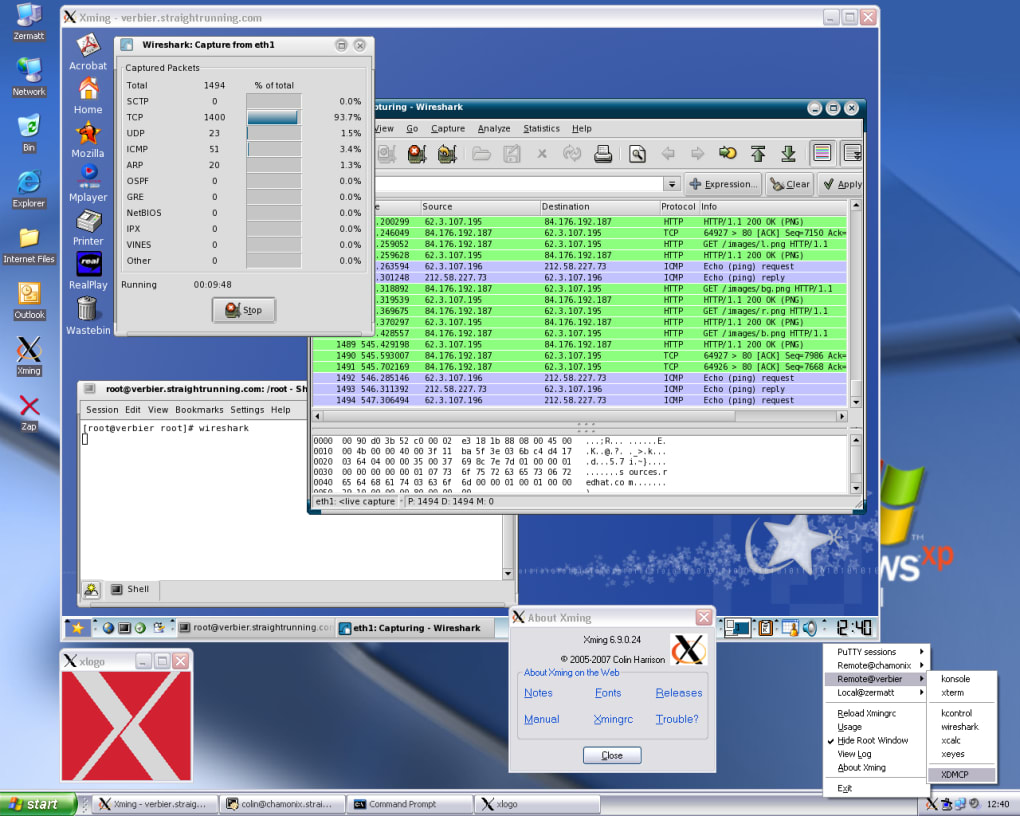
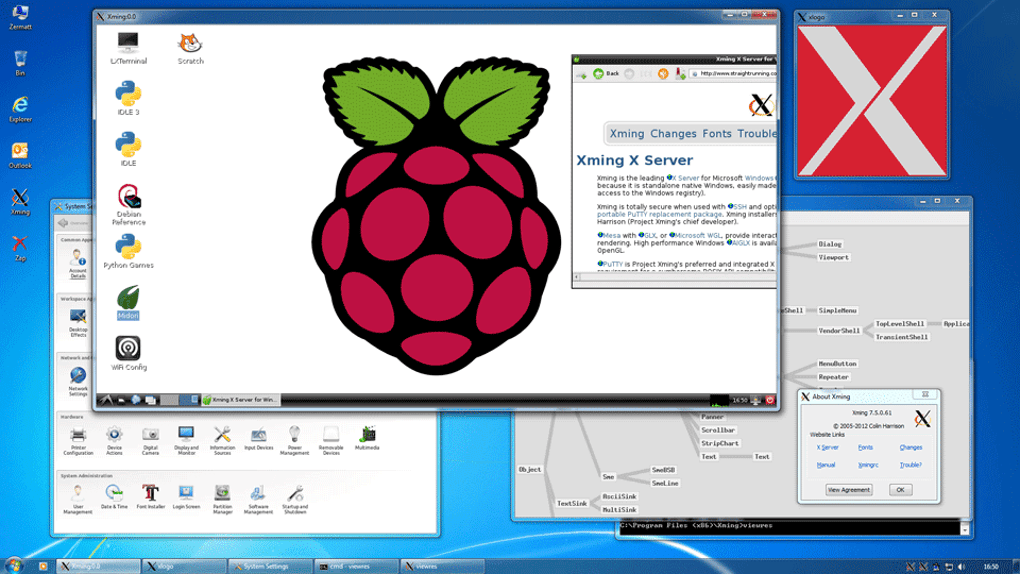
For secure remote work, pair Xming with PuTTY. In PuTTY’s configuration, navigate to “Connection → SSH → X11” and enable “X11 forwarding”. Specify “localhost:0” as the display location, then connect to your Linux host. The remote application will launch on the X server, appearing as a native Windows window. Because Xming supports OpenGL, 3‑D visualisations such as MATLAB plots or VNC viewers render smoothly, provided the underlying graphics drivers are up‑to‑date.
Although the default configuration works for many scenarios, power users often edit the Xmingrc file to fine‑tune resource limits, enable custom fonts, or adjust authentication methods. The file lives in the same directory as the executable and follows the standard X resource syntax. Because Xming lacks an extensive built‑in help system, many users turn to community forums or the official documentation hosted on the project’s site for advanced tweaks.
Compatibility, Pros & Cons, and Performance Insights
Compatible with Windows 7, 8, 10, and 11 (both 32‑bit and 64‑bit editions). The portable version works on any Windows system that can run a standard executable, without requiring administrator rights.
Pros
- Free, public‑domain software – no hidden fees or subscription models.
- Small footprint and fast startup time compared with heavyweight alternatives.
- Native Windows implementation eliminates the need for Cygwin or other emulators.
- Robust support for OpenGL and GLX, enabling smooth 3‑D graphics.
- Excellent SSH/X11 forwarding integration with popular Windows SSH clients.
- Portable edition makes it easy to carry the X server on a USB drive.
- Multilingual support and improved font rendering for better readability.
Cons
- Documentation is sparse; new users must rely on external forums for guidance.
- Manual configuration is often required after Windows major updates.
- Limited GUI configuration options compared to Cygwin/X or commercial X servers.
- Occasional instability when launching multiple heavyweight client applications.
- No built‑in screen recorder or advanced session logging features.
Overall, Xming delivers a reliable, lightweight X server experience for Windows users who need secure X11 forwarding and decent 3‑D graphics support. Its free licensing and portable nature make it an attractive choice for developers and sysadmins alike, despite the learning curve associated with its minimal documentation.
Frequently Asked Questions
Is Xming still actively maintained?
The core Xming project receives occasional updates, but the pace is slower than commercial alternatives. Users typically need to adjust configuration files after major Windows releases to maintain full compatibility.
Can I run Xming on Windows Server editions?
Yes, Xming works on Windows Server 2012, 2016, and 2019. The portable version is especially useful on server environments where installing additional software may require administrative approval.
Do I need a separate SSH client to use X11 forwarding?
While Xming includes the X server component, you still need an SSH client such as PuTTY, MobaXterm, or the built‑in OpenSSH client on Windows 10/11 to establish the encrypted tunnel.
Is the portable version truly “no‑install”?
Yes. The portable zip extracts all required binaries and configuration files, allowing you to launch Xming directly from a USB stick or a network share without writing to the Windows registry.
How does Xming handle high‑resolution displays?
Xming supports DPI scaling through the Xlaunch wizard and can render fonts sharply on 4K monitors. However, users may need to adjust the Xmingrc file to fine‑tune scaling factors for optimal clarity.
Conclusion – Should You Download Xming?
If you are a developer, system administrator, or power user who regularly accesses Linux or Unix graphical applications from a Windows workstation, Xming offers a free, lightweight, and secure solution. Its native Windows implementation, combined with strong SSH/X11 forwarding support and OpenGL capabilities, makes it a solid alternative to bulkier X servers. While the documentation could be richer and occasional manual tweaks are necessary after Windows updates, the benefits of a zero‑cost, portable X server outweigh these drawbacks for most technical audiences. Download Xming today, configure it with your favorite SSH client, and experience seamless remote GUIs without paying a dime.